Remote desktop setup for your remote session
Do this on the coach laptop before your session.
What we need and why
We need a laptop on your coach network and online, so we can pull your GX settings file and tune your network. That means:
- Connected to your coach network (Peplink, GL.iNet, cell modem or whatever you run) and to the internet.
- At the coach and powered on for the session.
- Google Chrome installed, with remote access set up using one of the options below.
Chrome Remote Desktop is our first choice. TeamViewer works too if you prefer it.
1. Chrome Remote Desktop: let us in anytime (recommended)
With this set up, we can pull your GX settings file and remote in to tune your network (Peplink, GL.iNet, modem) without you having to be at the laptop.
-
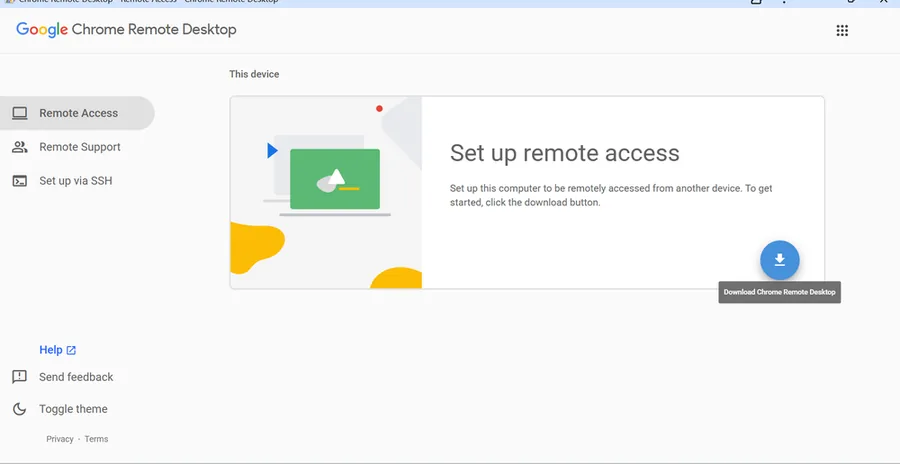
On the coach laptop, open Chrome and go to remotedesktop.google.com/access, then click the blue download button.
-
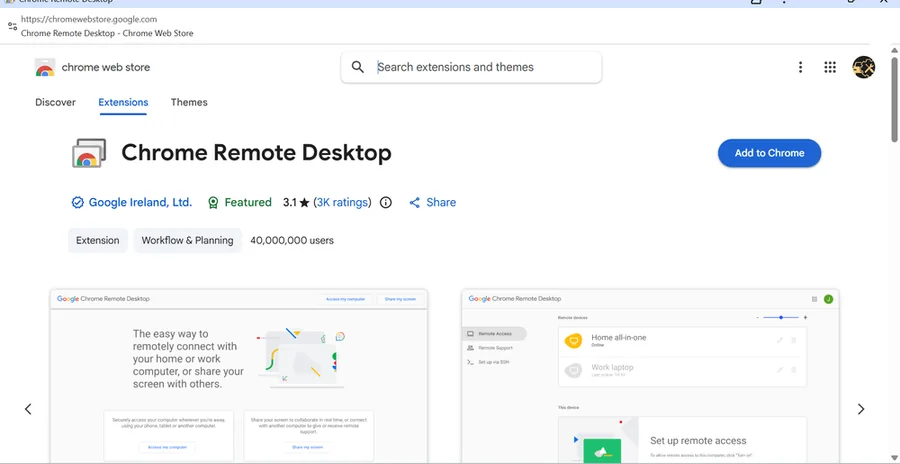
In the Chrome Web Store, click Add to Chrome.
-
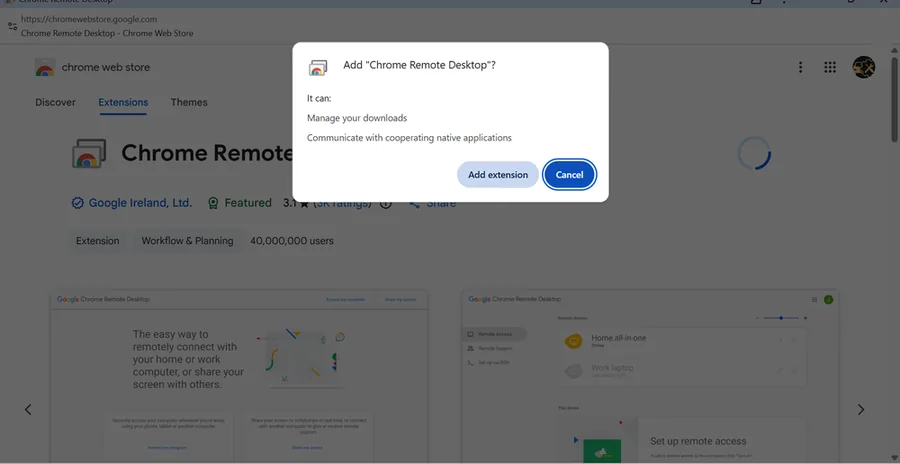
Click Add extension.
-
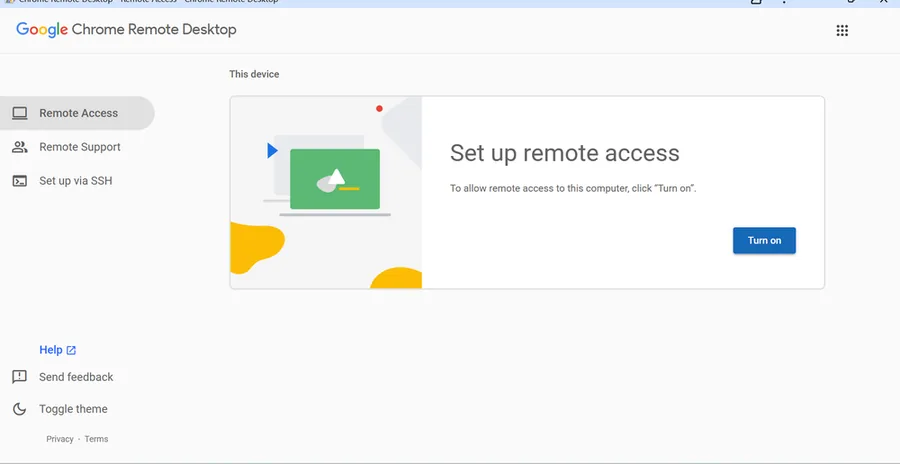
Back on the Remote Access page, click Turn on. If the installer downloads, run it. Your computer may ask for its password or for a security setting change to let Chrome Remote Desktop in.
-
Name the computer so we know which coach it is (for example
Bill-2020Newmar), then click Next.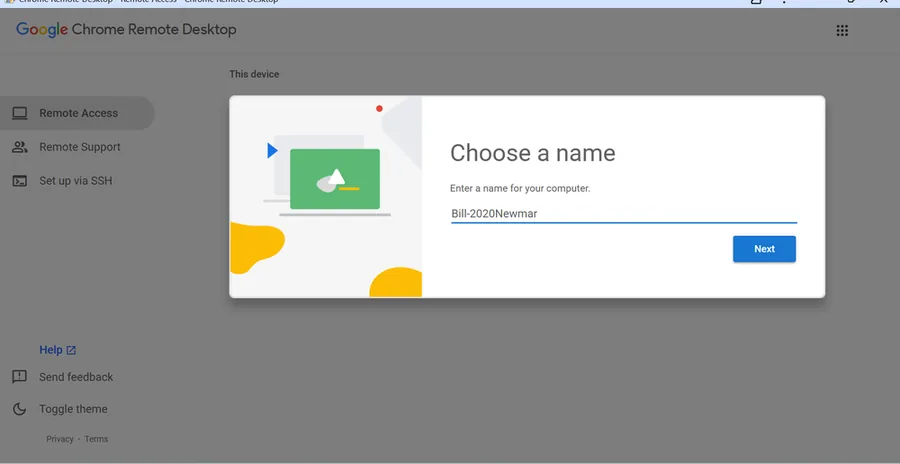
-
Pick a PIN of at least 6 digits. We’ll ask you to share it with us privately when we set up. You can change it or turn remote access off anytime.
To turn it off later, go back to remotedesktop.google.com/access and disable remote connections for that computer.
2. One-time session with a code
Use this if you’d rather let us in only while you’re at the laptop.
- Open Chrome and go to remotedesktop.google.com/support.
- Sign in with a Google account.
- Under Get Support, click download and install Chrome Remote Desktop when prompted.
- When we’re ready, click Generate Code and text or read us the code. It only works once.
- When we connect, you’ll see a box with our email address. Click Share to let us in.
- Click Stop Sharing anytime to end it. On long sessions Chrome asks you every 30 minutes to keep sharing.
3. TeamViewer QuickSupport (backup)
If Chrome Remote Desktop won’t cooperate, or you already use TeamViewer:
- Open the official TeamViewer QuickSupport download page, download QuickSupport, and run it.
- Give us the TeamViewer ID shown in QuickSupport.
- When the request appears, click Allow access.
Questions?
Call or text (616) 606-5277.